
FreecShot is SOOP’s dedicated broadcasting studio that allows you to stream using various broadcast sources and features.
[FreecShot]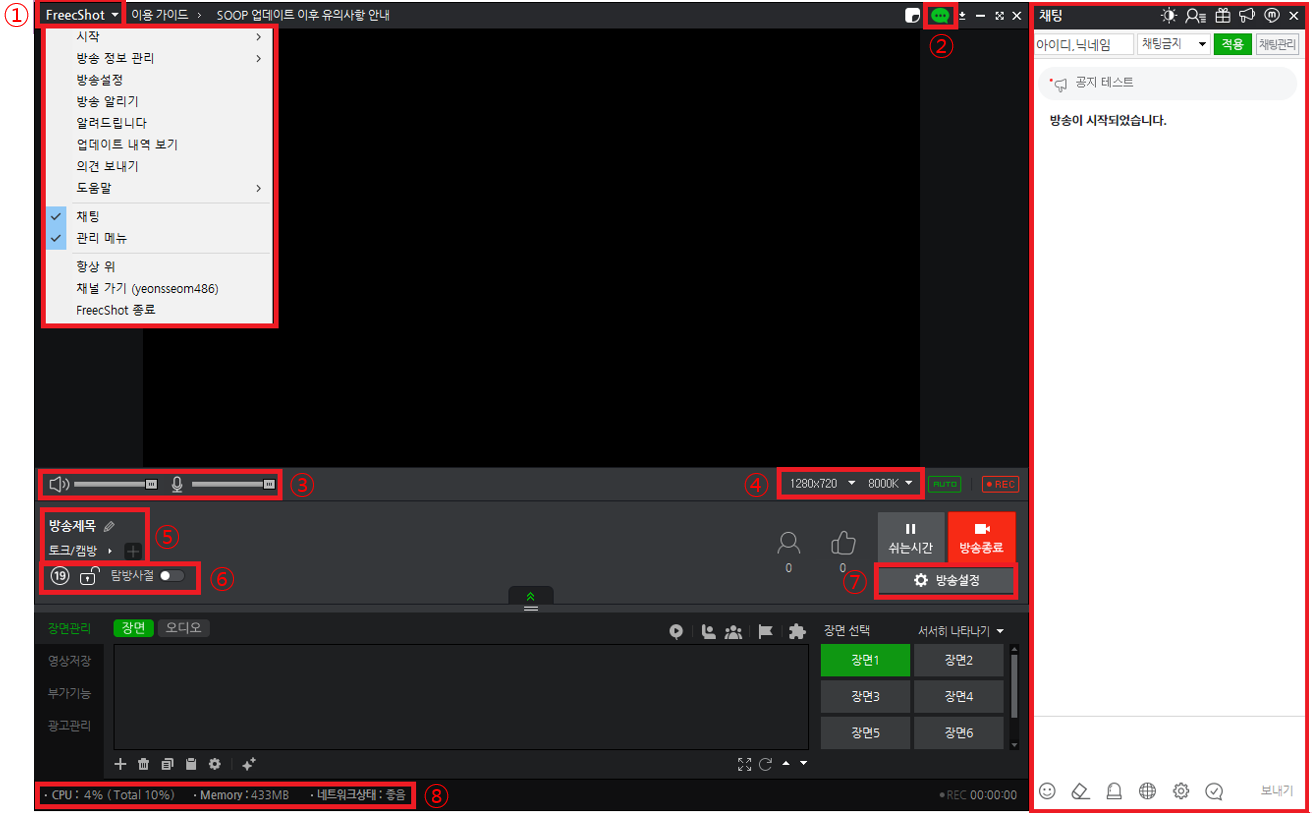
1. All Menu: The main menu where you can access all features.
2. Chat: You can show or hide the chat window.
3. Audio Volume: Adjust the volume of the sound heard by viewers.
4. Resolution & Quality Settings: You can set the resolution and video quality, or use the AUTO feature to automatically adjust based on your PC specifications.
5. Stream Info & Category: Set the title and category of your stream.
6. Stream Properties: Configure settings such as age restriction and password protection.
7. Stream Settings: Customize detailed settings including broadcast info, video, audio, recording, items, and hotkeys.
8 . CPU, Memory, Network Status Alerts: If CPU usage exceeds 90% or network conditions worsen, it may affect the stability of your broadcast.
[Stream Info]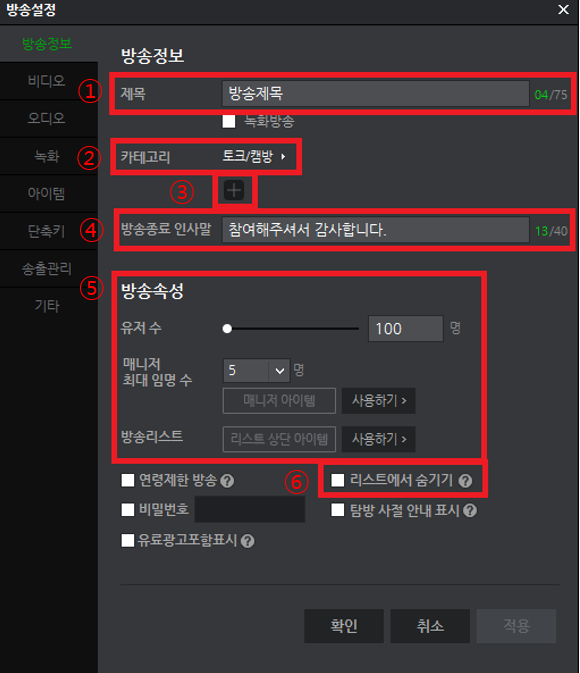
- Title: You can enter the broadcast title that will be shown to users in the broadcast list.
Recorded Stream: Select this when streaming a pre-recorded video.
If included, “[REC]” will be added at the beginning of the title. - Category: You can select the category for your stream.
- Stream Tags: You can enter tags related to your stream.
- End-of-Stream Message: You can write a message that will be shown to users when the stream ends.
- Stream Properties
- Max Viewers: Set the maximum number of users who can join the stream.
- Max Managers: Set the maximum number of managers that can be assigned.
- Stream List: You can feature your broadcast at the top using items in the stream list.
- Hide from List: You can hide your stream from the broadcast list, and it will not appear in search results.
- If hidden, the replay (VOD) will also not be saved.
[Video]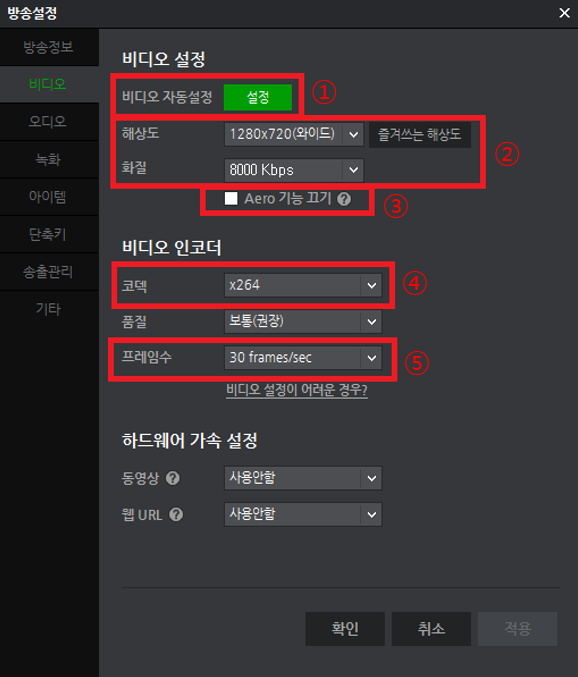
- Auto Video Settings: Automatically sets optimal values based on your PC specifications.
- Resolution & Quality: You can set your preferred resolution and video quality.
- Disable Aero: A feature available in Windows 7 that uses video resources; it is recommended to turn it off while streaming.
- Codec: A screen compression technology that can heavily use CPU (or GPU) resources and may cause high load.
By default, the x264 encoder is used. If your PC has a compatible NVIDIA GeForce graphics card, you can select the NVENC encoder.
Since it may cause significant load, it is recommended to adjust quality settings based on your PC specifications and content. - Frame Rate:
- For music streams or talk streams without a webcam, where there is little movement or mostly static images, it is recommended to set 24fps or lower to reduce unnecessary load.
- For gaming streams, if the original source supports 60fps, it is recommended to set 45–60fps depending on your PC performance.
- For other types of streams, a setting of 30fps is recommended.
[Audio]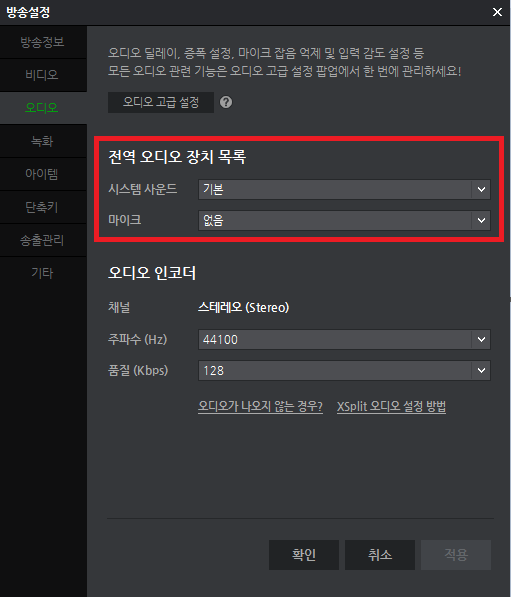
- When the microphone is set as the default device
Control Panel > Hardware and Sound > Sound > Recording
- System Sound: PC sound
- Microphone Sound: Microphone
- When Stereo Mix is set as the default device
Control Panel > Hardware and Sound > Sound > Recording
- System Sound: PC sound
- Microphone Sound: None
Playback > Speaker Properties > Levels: Make sure the Microphone (Real Pink In) is not muted
[Other Settings]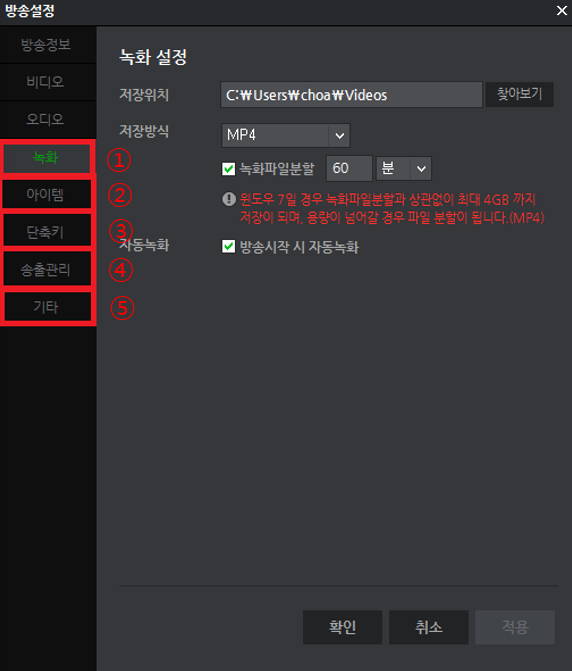
- Recording: You can set the storage location and recording format.
- Items: You can check the usage history of items.
- Hotkeys: You can set hotkeys using combinations of the Ctrl and Alt keys.
- Stream Management: Allows you to stream not only on SOOP but also on other platforms.
- Others: You can configure and manage joint (collaborative) streaming settings.
[관리 메뉴]
- Scene Management
1)Add Source: You can add your PC screen or running game screen, as well as use various sources such as images, subtitles, and the Virtual Assistant.
2) Scene Composition: Added sources are displayed in order and can be hidden using checkboxes.
3) You can delete, copy, paste, configure, and apply camera effects to added sources.
4) You can change the order of added sources.
5) You can use features such as Video Balloons, User Participation, Co-stream Challenge/Battle Missions, and Extensions.
6) Scene Selection: You can manage scenes for standby or live streaming based on your needs. - Video Recording: You can record your broadcast to a designated location and use features such as instant save for replay and highlight clipping.
- Additional Features: You can create polls, select themes to automatically configure your broadcast screen, and schedule stream end times.
- Ad Management: You can apply Ad Balloon banners.