
You can stream using SOOP’s dedicated broadcasting studio with various sources and features.
[FreecShot]
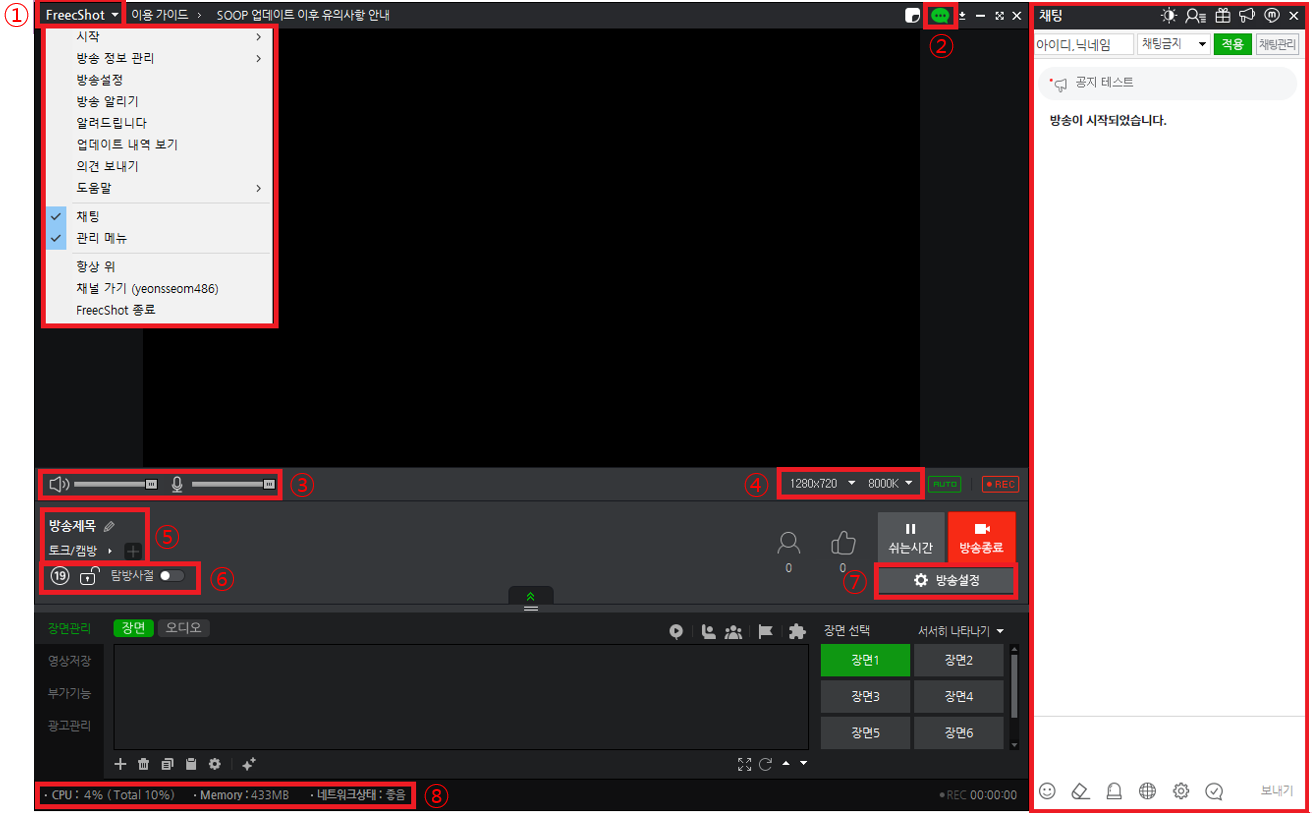
- Main Menu: Access all available features.
- Chat: Show or hide the chat window.
- Audio Volume: Adjust the sound volume heard by users.
- Resolution & Quality Settings: Set resolution and quality, or use AUTO to match your PC specs.
- Broadcast Info & Category: Set the stream title and category.
- Broadcast Properties: Configure settings such as age restriction and password.
- Broadcast Settings: Configure detailed settings including stream info, video, audio, recording, items, and hotkeys.
- CPU, Memory, Network Status: If CPU exceeds 90% or network status degrades, it may affect streaming quality.
[Broadcast Information]
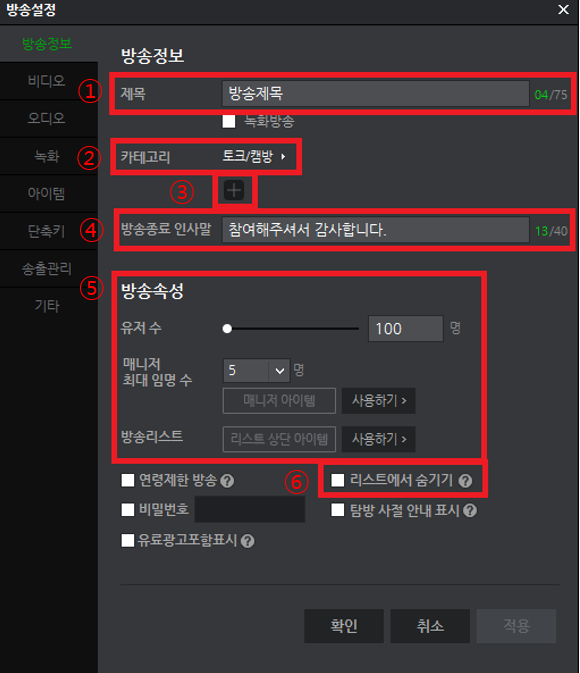
- Title: Set the stream title displayed to users.
Recorded Stream: Select when streaming pre-recorded content.
If included in the title, [REC] will be added at the beginning. - Category: Choose the category for your stream.
- Tags: Add relevant tags for your stream.
- End Message: Set a message to display when the stream ends.
- Broadcast Properties:
- Max Users: Set the maximum number of viewers.
- Max Managers: Set the number of managers.
- Featured Placement: Promote your stream at the top using items.
- Hide from List: Hide your stream from the list and search results.
*If hidden, replay will not be saved.
[Video]
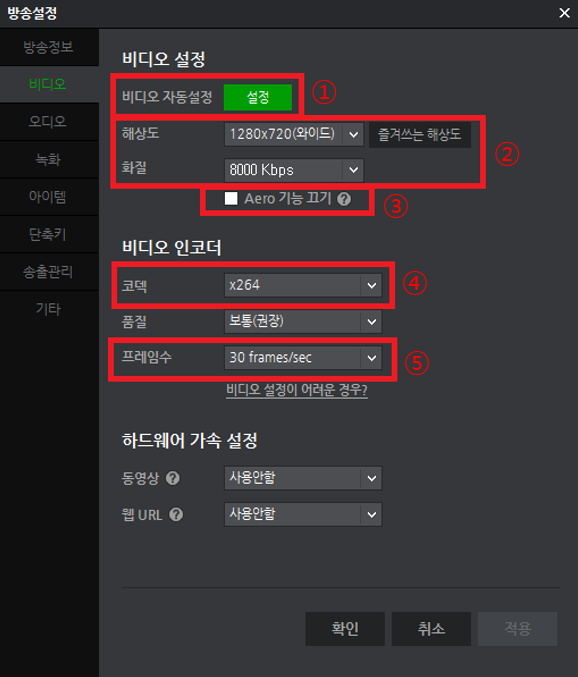
- Auto Setup: Optimize settings based on your PC specs.
- Resolution & Quality: Set preferred resolution and quality.
- Disable Aero: Recommended to disable on Windows 7 to reduce resource usage.
- Codec: Compression method that uses CPU/GPU resources.
- Default: x264 encoder
- NVENC available on some NVIDIA GPUs
- Choose settings based on PC performance and content
- Frame Rate:
- Low-motion streams (music, talk without webcam): 24fps or lower recommended
- Gaming (60fps source): 45–60fps recommended depending on PC specs
- Others: 30fps recommended
[Audio]
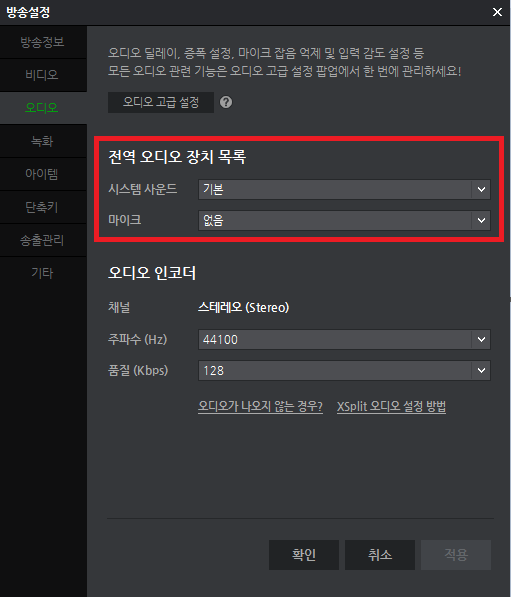
- When Microphone is Default Device:
Control Panel > Hardware and Sound > Sound > Recording
- System Sound: PC audio
- Microphone Sound: Microphone
- When Stereo Mix is Default Device:
Control Panel > Hardware and Sound > Sound > Recording
- System Sound: PC audio
- Microphone Sound: None
Playback > Speaker Properties > Levels: Ensure Microphone (Real Pink In) is not muted
[Other Settings]
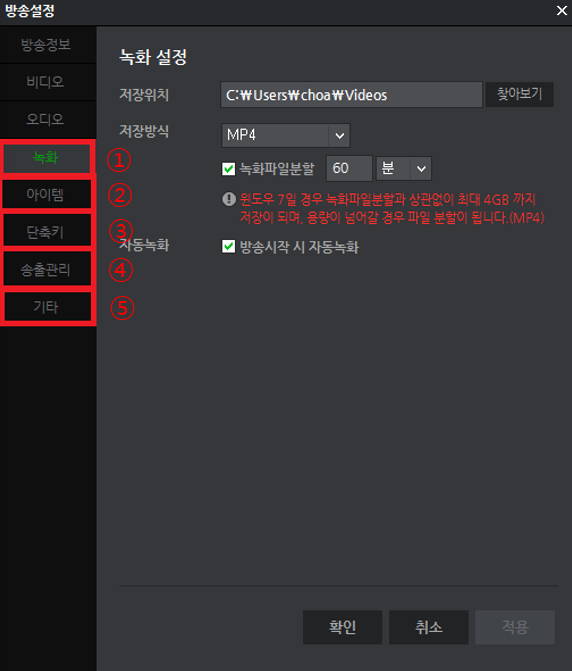
- Recording: Set storage location and format.
- Items: Check item usage history.
- Hotkeys: Set shortcuts using Ctrl/Alt combinations.
- Multi-stream: Stream to other platforms in addition to SOOP.
- Others: Configure and manage co-streaming settings.
[Management Menu]

- Scene Management:
- Add Source: Add PC/game screens, images, subtitles, assistant, etc.
- Scene Composition: Arrange sources in order; hide via checkbox
- Edit Sources: Delete, copy, paste, configure, apply camera effects
- Reorder Sources
- Use features like video balloons, user participation, co-stream missions, extensions
- Scene Selection: Manage standby/live scenes
- Video Storage: Record streams to a set location, use instant save and editing features.
- Additional Features: Create polls, apply themes, schedule stream end.
- Ad Management: Apply Ad Balloon banners.