
To stream on SOOP using a Mac, you need to go through three setup steps:
- Mac audio settings
- SOOP external device broadcast settings
- Streaming software configuration
- Setting up virtual stereo mix on Mac
Audio setup is the most important part when streaming on SOOP using a Mac.
Since macOS does not support desktop audio by default, you need to install a virtual audio driver.
- Install a virtual audio driver
Here, we’ll use “Soundflower” as an example.
Download it from the link and proceed with the installation. - Audio MIDI Setup
After installing Soundflower, additional Audio MIDI configuration is required.
(If not configured, audio will be transmitted to the stream, but the streamer will not hear it.)
a. Search for “Audio MIDI Setup” in Finder or open it from the Applications folder
b. Click the “+” button at the bottom left and select “Create Multi-Output Device”
c. Select the created Multi-Output Device and check both “Soundflower (2ch)” and “Built-in Output”
d. Go to macOS Settings > Sound > Output and select “Multi-Output Device”
- Setting up external device streaming on SOOP
*SOOP provides a separate settings page for streamers using external RTMP devices.
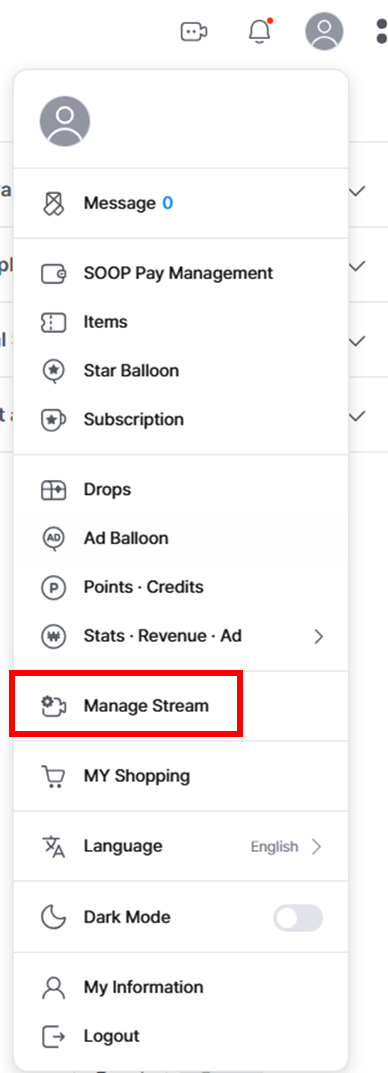
1) Access the external device Stream settings page
- Go to your channel and select [External Device Broadcast Settings] on the left
- Or access: http://dashboard.sooplive.co.kr
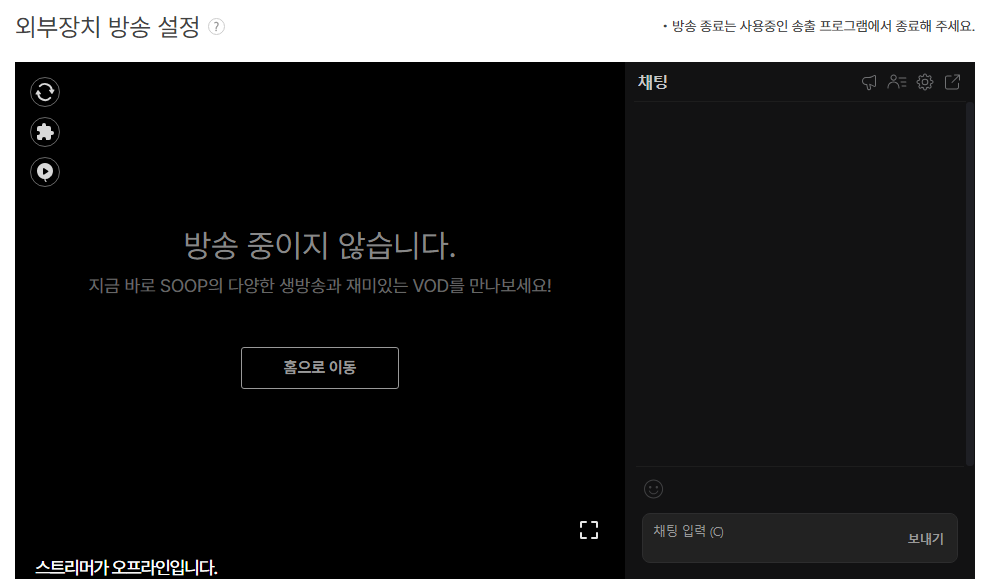
2) After accessing the External Device Broadcast page, enter your broadcast information.
You can set the stream title, theme, participant limit, and more.
- Streaming on SOOP using OBS for Mac
※ OBS for Mac is used here as an example streaming software.
1) Install OBS for Mac
Install the Mac version of OBS. OBS is open-source software and can be downloaded for free.
2) Launch OBS and click “Settings” (refer to the image).
3) Configure the stream type
Go to OBS Settings > Stream tab and select “Custom Streaming Server” (① in the image).
4) Check Stream Key and Server URL
Go to the External Device Broadcast page (Dashboard) and find your Stream Name and Server URL.
Enter ① Stream Name (= Stream Key) and ② Server URL (= URL) accordingly.
5) Configure output settings
Go to OBS Settings > Output tab and set:
- Video Bitrate
- Encoder (Codec)
- Audio Bitrate
Please refer to SOOP’s recommended maximum values (② in the image) when setting these.
The x264 encoder is recommended.
6) Configure audio settings
Go to OBS Settings > Audio tab and select “Soundflower (2ch)” as the Desktop Audio Device
7) .Configure video settings
Go to OBS Settings > Video tab and set the Output (Scaled) Resolution.
The recommended resolution for SOOP external streaming is 1920x1080.
8) Start streaming
You can monitor your stream and manage chat through the External Device Broadcast settings page on both PC and mobile.