
You can use the Streamer Notice feature to share important information with your viewers.
Once registered, the notice will be displayed at the top of the chat window during the broadcast, making it more visible and effective.
[How to Register]
On PC, you can set it at the top of the chat window in FreecShot or the External Device Broadcast settings page.
On mobile, go to Broadcast > Settings > Streamer Notice to register it.
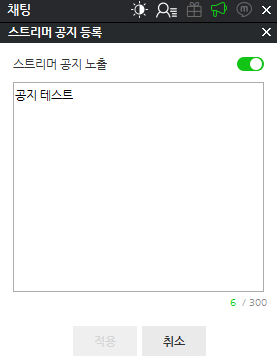
- Streamer Notice Registration Button
- You can register a notice by clicking the Streamer Notice icon at the top of the chat window.
- You can create a new notice or edit an existing one, and toggle its visibility On/Off.
- Notice Visibility On/Off Setting
- You can choose whether to display the notice before or after entering the content.
- On: Can only be applied when content is entered, and the notice will be shown at the top of the chat window
- Off: Can be applied even without content, but the notice will not be displayed
- The On/Off setting remains unchanged even after the broadcast ends
- Notice Input Field
- You can enter up to 200 characters for the notice displayed on the participation screen