
A Channel is a space where you can view and manage your VODs and posts.
You can customize your Channel and manage various VODs and posts.
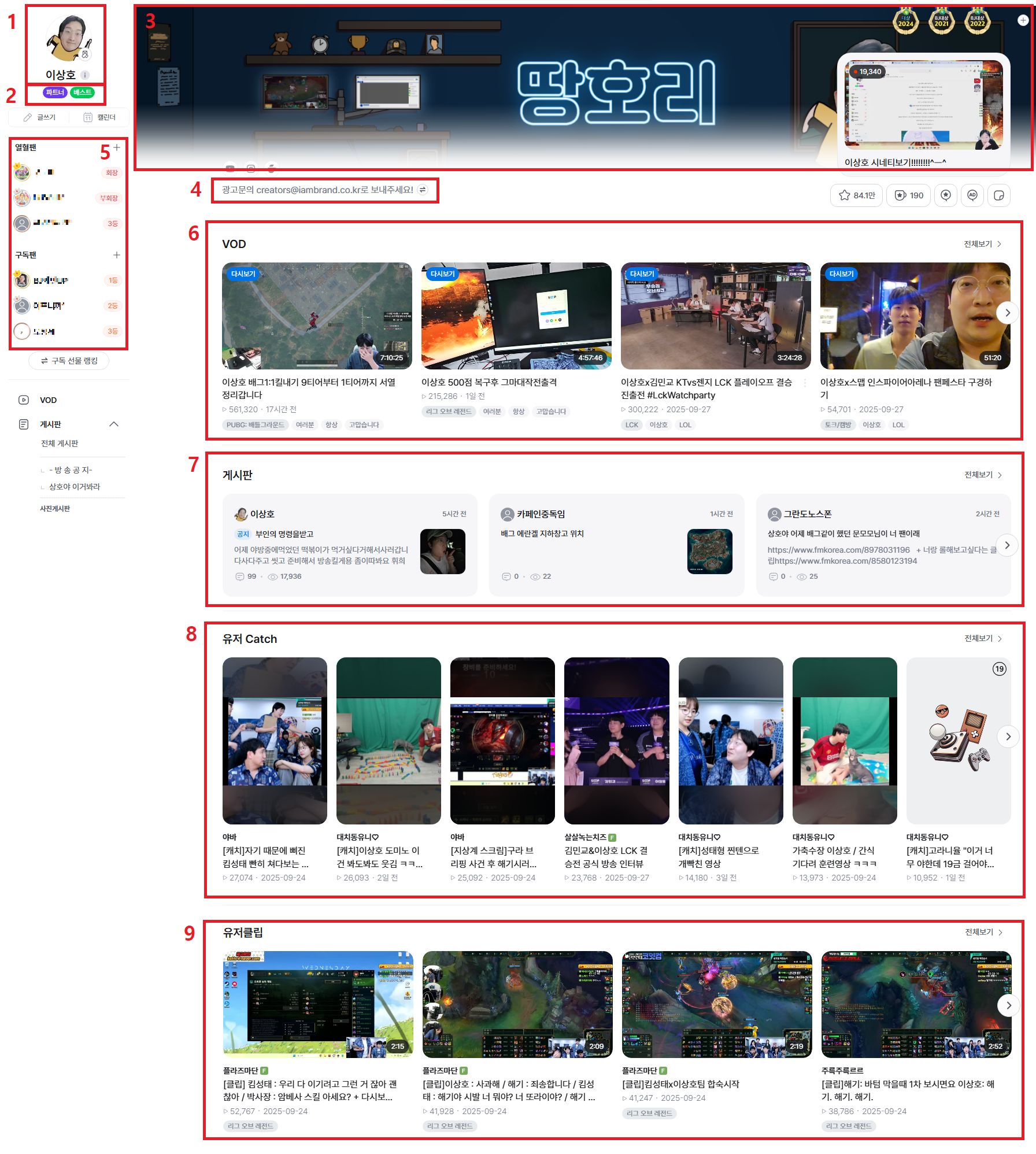
- Profile Image
You can set a profile image that represents you. - Streamer Badge
If selected as a star streamer such as Partner, Best, or Pro Gamer, a badge will be displayed. - Title Image
You can set a title image that will be displayed on your Channel home (PC and mobile). - Profile Message
Your custom profile message will be displayed. - Top Fans List & Subscription / Gift Subscription Ranking
The top 20 users who sent Star Balloons/Ad Balloons and the top 20 users in subscription/gift rankings based on cumulative subscriptions and purchase amounts will be displayed. - VOD
All created VODs are displayed in order of most recent. - Posts
Posts created by the streamer are displayed in order of most recent. - User Catch
User-generated VOD content is displayed based on highest views within the last 7 days. - User Clips
User-generated VOD content is displayed based on highest views within the last 7 days.
[Section Visibility Settings]
- You can toggle each section ON/OFF via Channel Management > Home Section Management (order cannot be changed).
- Default ON: VOD / Posts / User Clips / SOOP Store / Banner
- Default OFF: Catch Story / Playlist
[Pin Feature for 2 Sections (VOD / Posts)]
- You can set an expiration date when pinning content.
- Pinned content is displayed with a red pin icon.