
Hello, this is SOOP.
Following recent updates to Chrome and other Chromium-based browsers (such as Edge and Whale),
changes in browser policies may restrict watching SOOP live if the browser blocks access to apps installed on your device—even if the High-Quality Streamer is properly installed.
If you are experiencing this issue, please follow the steps below to resolve it.
[How to Check via Address Bar]
1. If a popup appears asking for permission to access other apps and services on your device:
1) When the permission request popup appears at the top of your browser, please select [Allow].
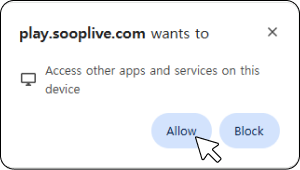
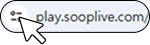
2. If you previously selected [Block] or closed the popup by clicking [X]:
1)Click the settings (or lock) icon on the left side of the address bar.
2) In the menu, turn ON [Apps on your device], then refresh the page.
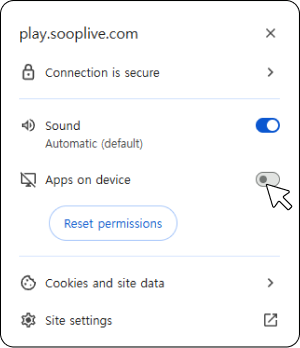
3) After switching to high quality, click [Install High-Quality Streamer] in the popup.
[Detailed Permission Settings by Browser]
If the issue persists or the menu is not visible, you can manually grant permissions in your browser settings.
- Chrome
1) Path: Settings > Privacy and Security > Site Settings > Additional Permissions > Apps on your device
2) Add play.sooplive.com under “Allowed to access apps and services on your device.”
3) Or enter chrome://settings/content/loopbackNetwork in the address bar to go directly to the settings page. - Edge
1)Path: Settings > Privacy, Search, and Services > Site Permissions > All Permissions > Apps on your device
2) Add play.sooplive.com under “Allowed to access apps and services on this device.”
3)Or enter edge://settings/privacy/sitePermissions/allPermissions/loopbackNetwork in the address bar to go directly.
※ If the permission menu is not visible in Edge:
Depending on your Edge browser version, it may be difficult to locate the permission settings menu using the methods above.
If the popup continues to appear and the issue is not resolved, please try the following steps:
1)Enter edge://flags/#local-network-access-check in the address bar.
2) Find “Local Network Access Checks” and set it to [Enabled].
3) Restart the browser and reconnect to SOOP.
4) When the permission popup appears, select [Allow].
We will continue working to provide a better SOOP service.
Thank you.